Search Criteria Panel
The Search Criteria panel is used to search for users in the XtreamService application. When this screen is accessed, a list of all user records displays automatically in the Results section.

|
The Search Criteria panel displays on the User Management screen. To access the User Management screen, click the |
 (More) icon and then click the User Management link in the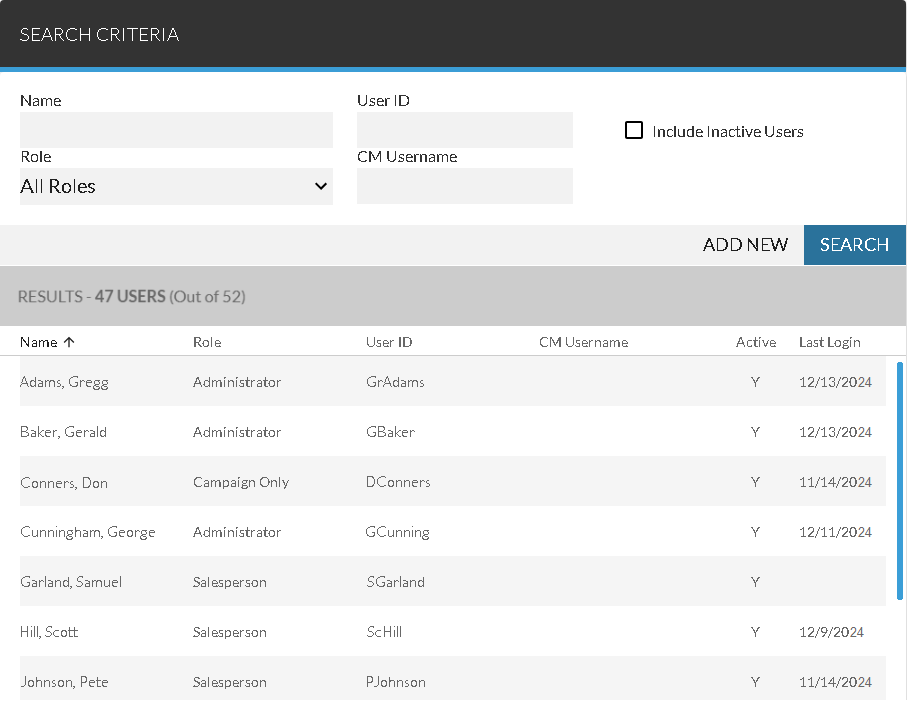
To add a new user, click the ADD NEW button. The Add User panel displays, where a user can be added. To search for a user, make entries in the fields in the Search Criteria panel and click the SEARCH button.
 Search Criteria Section
The Search Criteria panel is used to enter criteria to include in the search for user records.
The following fields are available in the Search Criteria panel.
Name: Enter the name of the user for whom to search. A search for user records can be performed using a first name, last name, or both.
User ID: Enter the User ID of the user for whom to search.
Role: Select the role of the user for whom to search, such as Administrator or Salesperson.
CM Username: Enter user name of the user for whom to search in the Digital Retail Platform.
Note - This field is only available if FOCUS or the Customer application
Include Inactive Users: Select this check box to include inactive user records in the search. A user is considered inactive if the Active check box is cleared on his user record.
Results Section
The Results section is used to review information about users that match the entered search criteria. When the User Management screen is accessed, a list of user records displays automatically in this section, sorted in alphabetical order based on the entry in the Name column. Additionally, X Users (Out of Y) displays at the top of this section, where "X" is the number of users matching the current search criteria and "Y" is the total number of users including inactive users.
To change the order in which results display, click any column heading to sort the results. The items in the results are re-sorted by the selected column in descending order, and the  (Descending) icon displays to the right of the selected column heading.
To change the sort to ascending order, click the same column heading again. The items are re-sorted in ascending order, and the  (Ascending) icon displays to the right of the selected column.
The following columns display in the Results section.
Name: The name of the user displays.
Role: The role of the user displays, such as Administrator or Salesperson.
User ID: The User ID of the user displays.
CM Username: The user name of the user in the Digital Retail Platform displays.
Note - This column is only available if FOCUS or the Customer application
Active: If the user record is active, Y displays. Otherwise, this column is blank.
Last Login: The date of the user's last login displays.
Click here for a list of products that may be mentioned in this help file.